Most AI agent demos fall into two groups: writing code or planning a holiday.
Both are useful. Both are well covered.
But there is a gap between them, full of small, fiddly technical jobs that you know how to do but keep putting off because the effort feels bigger than the result.
Debloating my Nvidia Shield was one of those jobs. I had been meaning to do it for years.
The task that sat there for years
The Shield TV Pro works well enough out of the box, but it comes with Nvidia telemetry, Google’s recommended content row, and a screensaver that doubles as an advertising billboard.
Every time I thought about fixing it, the process looked just annoying enough that I found something else to do.
Find the guide. Install ADB. Type 80+ commands carefully. Find a replacement launcher. Hope nothing breaks.
This is exactly the kind of job an agent is good at. Not because it needs creativity or deep reasoning, but because it is procedural, tedious, and has a clear end point.
It is the kind of thing a capable person can do, but would rather not sit through.
The setup
I used Hermes, my local AI agent setup with terminal access. I still approved the risky bits, but it handled the mechanical work.
I pointed it at the debloat guide and Projectivy Launcher. I told it what I wanted to keep and what could go. It read both, planned the approach, and we got started.
First step: enable network debugging on the Shield.
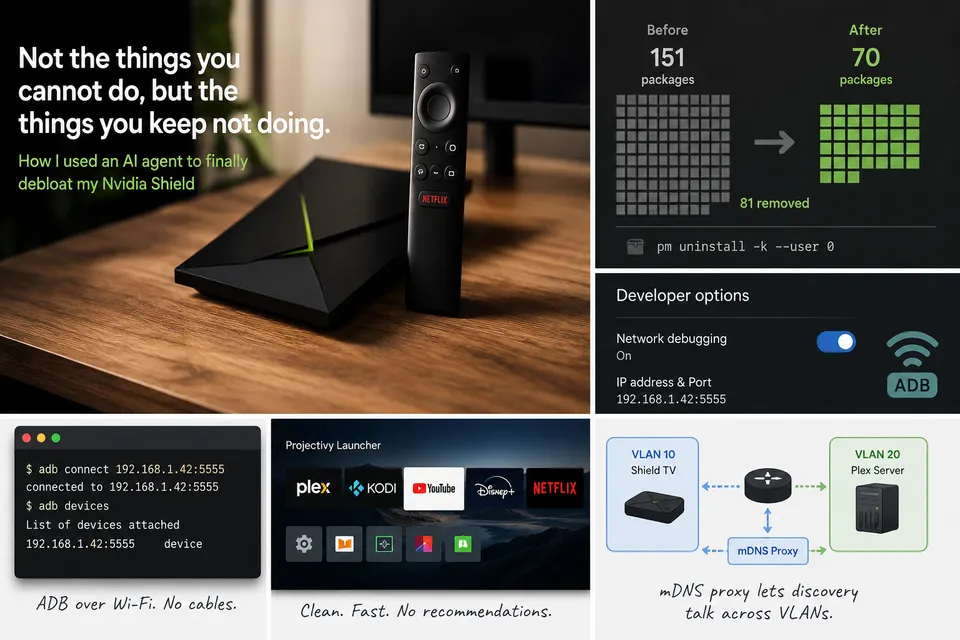
Settings → Device Preferences → Developer Options → Network debugging on. Note the IP address. Accept the ADB prompt on the TV. Done.
Hermes installed ADB on the host machine, connected to the Shield over Wi-Fi, and confirmed the connection.
No USB cable needed.
The launcher swap
The stock Shield home screen is fine, but the Google recommendations row is advertising with extra steps.
Projectivy Launcher is clean, ad-free, and has the features I actually want: custom layouts, animated wallpapers, parental controls, and calibration test patterns for AV nerds.
Hermes downloaded the APK from GitHub, sideloaded it with ADB, and I set it as the default launcher on the Shield.
Simple.
The important bit: do this before removing the stock launcher. Otherwise you can end up with no home screen.
The great purge
There were 151 packages installed on my Shield.
A lot of them were harmless, but harmless is not the same as useful.
We split the packages into rough groups: safe to remove, keep, and do not touch unless you enjoy factory resets. Hermes then worked through the safe list in batches.
The removals included Nvidia diagnostics, registration, analytics, beta programmes, factory tools, game streaming components, unused controller features, the stock Android TV launcher, Google recommendations, Backdrop screensaver, setup components, and various Android packages that make sense on a phone but not on a TV.
I kept the Play Store and Play Services, because I still want app updates.
There was one brief moment of drama. Removing the stock TV launcher made the Shield’s system UI restart, which dropped the ADB connection for a few seconds. Hermes reconnected and carried on.
End result: 151 packages down to 70. 81 removed.
Everything was removed with:
pm uninstall -k --user 0That removes the app for the current user rather than deleting it from the system image. In most cases, if I need something back, it can be restored with:
cmd package install-existing <package>This is not a universal debloat list. It worked for my Shield, my apps, and my tolerance for removing Nvidia extras. The important part was doing it in reversible steps.
The screensaver
With Google Backdrop gone, I needed a replacement.
Aerial Views recreates the Apple TV’s flyover videos in 4K, with Dolby Vision support. It is open source, ad-free, and has a large video library.
Hermes installed it and set it as the default screensaver through ADB. I opened it on the Shield to choose video sources and turn on the clock overlay.
Much better than stock.
The one thing that needed a real fix
After the debloat, I noticed Plex on the Shield was not connecting directly to my server. It was going through Plex’s cloud relay instead: slower, lower quality, and unnecessary.
My Shield sits on a different VLAN from my Plex server. Plex relies on local discovery traffic to find servers, and that does not reliably cross VLAN boundaries.
I assumed I could set the server IP manually in the Plex app, but the Android TV client does not have that option. Unlike some other Plex clients, there is no manual connection setting.
This is where the agent helped with something I probably would have lost patience with.
When I could not find the manual IP setting, Hermes checked and found that it simply does not exist in the Android TV app. Instead of wasting time digging through menus, we fixed it at the network layer.
In my case, enabling the Gateway mDNS Proxy in UniFi and selecting both VLANs was enough for the Shield to find the Plex server directly.
Plex connected directly within seconds.
What I actually used an AI agent for
This was not coding.
It was not travel planning.
It was something in between: a technical household job that needed knowledge of ADB commands, Android package names, APK sideloading, network debugging, and VLAN routing.
The knowledge was straightforward. The execution was boring enough that I had put it off for years.
The agent did not do anything I could not do myself. But it removed the activation barrier.
I said “debloat my Shield”, stayed in the loop for the risky decisions, and about 20 minutes later it was done.
No hunting for APKs. No typing commands one at a time. No cross-checking package lists manually. No losing momentum when ADB disconnected or Plex behaved strangely.
I decided what to keep. Hermes handled the mechanics.
I have a second Shield to do next. This time the process is documented as a reusable skill: same packages, same order, same pitfalls. It should take about 10 minutes.
That is the underrated use case for AI agents: not the things you cannot do, but the things you keep not doing.